FleetTrack Pro
My trips
OngoingCompleted
Chicago → Pittsburgh
FT-1842 · Trip ongoing
Atlanta → Nashville
FT-1830 · Done
TripsProfileAlerts
iOS & Android
Driver mobile app
Trips, planned path, fuel, and alerts — no Odoo seat per driver.
Complete fleet tracking on Odoo. Trips, live GPS on the admin dashboard, and the driver app — one system from dispatch to the cab.
 Fleet
FleetFT-1842
Vehicle
IL-4421-AB
Driver
J. Carter
From
Chicago depot
To
Pittsburgh terminal
FleetTrack Pro
Hi, J. Carter
No active trip
Assigned vehicle
IL-4421-AB
Waiting for a trip from Odoo
Manager creates the trip in Odoo
FleetTrack Pro is TraceNcode’s complete fleet tracking system on Odoo 19. Fleet managers assign vehicles, drivers, and intercity routes in Odoo. Drivers run trips, fuel logs, and alerts on iOS and Android — without a full Odoo seat per phone. Live GPS movement is on the Odoo dashboard for admins — not on the driver app. A circle or polygon corridor around the assigned road raises an alert if the truck leaves the path. You can start a trip from an Inventory delivery order or a pickup (receipt note).
Trip assignment
Draft the trip, pick who drives it, and push it to FleetTrack Pro. The same vehicle cannot run two overlapping trips.
FleetFT-1842
Vehicle
IL-4421-AB
Driver
J. Carter
From
Chicago depot
To
Pittsburgh terminal
Route
I-70 · Chicago → Indianapolis → Columbus → Pittsburgh
Pick vehicle, driver, and the intercity path, then assign. The driver sees it in the app.
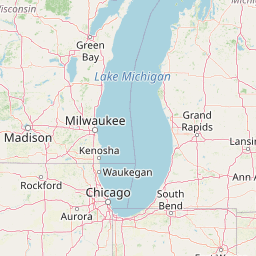
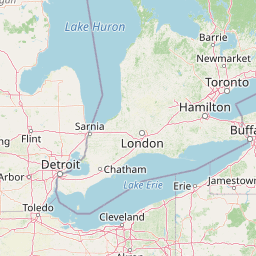
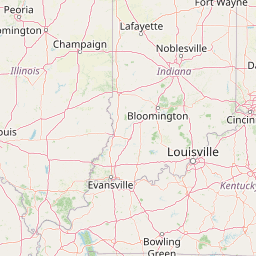
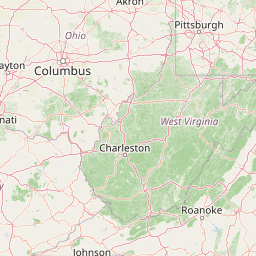
© OpenStreetMap
Route corridor
Draw a circle around a waypoint, or a polygon that wraps the assigned road. City names sit on the map so dispatch can see the corridor against the real route.
FleetCorridor
PolygonName
I-70 Chicago → Pittsburgh
Geofence type
Vertices
16 points wrapping the full route
Draw a circle around a waypoint, or a polygon that wraps the assigned road. Not a warehouse fence.
FleetTrack Pro
FT-1842
Assigned · planned route
Chicago → Pittsburgh
460 mi · 11h 20m · tomorrow 06:00
Start odometer · 42,110 km
Start trip
Driver app
Open the trip and see the exact route Odoo assigned.
Roles
Assigned trip
Chicago → Pittsburgh
FT-1842 · tomorrow 06:00 · 460 mi
Start trip
Run the trip from the phone. Planned route only — no live movement on the app.
IL-4421-AB · 06:00–18:00
Blocked: overlaps FT-1848
Assign vehicle, route, and a circle or polygon corridor.
Last pings
FT-1842 · 42 km/h · 4s
FT-1848 · 61 km/h · 2s
Watch live GPS on the Odoo admin dashboard.
Product
The cab runs FleetTrack Pro. Dispatch runs Odoo.
FleetTrack Pro
My trips
Chicago → Pittsburgh
FT-1842 · Trip ongoing
Atlanta → Nashville
FT-1830 · Done
iOS & Android
Trips, planned path, fuel, and alerts — no Odoo seat per driver.
Draft
FT-1901
Chicago → Pittsburgh
Assigned
FT-1842
Chicago → Pittsburgh
Ongoing
FT-1848
Chicago → Pittsburgh
Done
FT-1830
Chicago → Pittsburgh
Odoo
Draft → Assigned → Ongoing → Done. Same vehicle cannot run two overlapping trips.
Route planning
Pick the path and waypoints. The app draws that exact road.
Odoo admin dashboard
Speed, heading, last ping — the truck moves on the Odoo map for admins, not on the driver phone.
Name
I-70 Chicago → Pittsburgh
Geofence type
Circle or polygon
Draw a circle or a polygon around the assigned road. Leave it, get an alert.
From Odoo to the road
FT-1901
From
Chicago depot
To
Pittsburgh terminal
Planned route
I-70 · 460 mi
Step 01
Create the trip in Odoo, pick start and destination, then define the route the driver should follow—highways, waypoints, and an allowed radius around that path.
FleetTrack Pro
Step 02
Drivers sign in with Odoo credentials, see the assigned route on the map, and log fuel without a full backend license on every phone. Location is sent to Odoo; live movement is only on the admin dashboard.
Step 03
Fleet managers watch ongoing trips on the Odoo live map, get alerts if a vehicle leaves the route radius, and keep odometer and trip history in Odoo for audit and billing.
Odoo Inventory
Open a delivery order or a pickup (receipt) and create the fleet trip from that document.
FleetWH/OUT/00042
Operation type
Delivery
Source document
SO/00142
Customer
Port Logistics Co.
Delivery address
Pittsburgh terminal
Delivery note → start the fleet trip
FleetWH/IN/00018
Operation type
Receipt
Source document
PO/00087
Vendor
Ohio Freight Co.
Pickup from
Cincinnati warehouse
Pickup (receipt note) → start the fleet trip
FAQ
How the Odoo fleet tracking system, driver app, and route corridor work.
FleetTrack Pro is TraceNcode’s Odoo-integrated fleet tracking system. Dispatchers assign trips, vehicles, and routes in Odoo. Drivers run an iOS and Android app for trips, fuel logs, and alerts. Live GPS movement is only on the Odoo admin dashboard — not on the driver phone.
It runs on Odoo 19 Fleet with trip management, live tracking, route planning, and corridor geofences. You can start a fleet trip from an Inventory delivery order or a pickup (receipt note). Fuel, odometer, and trip history stay in Odoo.
No. FleetTrack Pro uses a corridor around the assigned road — drawn as a circle or a polygon — not a site fence for attendance. If the vehicle leaves that corridor, managers and the driver get an alert.
No. Live GPS tracking and the moving truck are only on the Odoo dashboard for admins and dispatchers. The driver app sends location in the background so Odoo can show the vehicle. On the phone, drivers see the assigned planned route, not a live tracking map.
Drivers sign in with Odoo credentials on the FleetTrack Pro app. The cab does not need a full Odoo backend seat per phone. Dispatch and managers work in Odoo.
Yes. Open a delivery order (outgoing) or a pickup receipt (incoming) in Odoo Inventory and create the fleet trip from that document instead of typing a trip from scratch.
Pricing is on request. Request a demo or talk to sales at [email protected] or +91 6264727807.
Pricing on request. Request a demo.
[email protected] · +91 6264727807